Inspired by an old post by Rui Moura, I’ll maintain here the plain commands needed to setup a freshly installed Fedora or Red Hat system, to include essential softwares they don’t ship by default due to legal issues.
These instructions are currently optimized for Fedora 14, 15 and 16, but most of it should work on any other Fedora and modern Red Hat Enterprise Linux too. Good suggestions provided as comments bellow will be added to this guide.
Index
- Permissions Setup
- Keeping System Updated
- Repositories Setup
- Activate Hardware Acceleration on NVidia and Intel GPUs
- Install Adobe Flash Player Globally
- Install Google Chrome or Chromium Browser
- Access LAN Hosts by Name Without a DNS Server (Bonjour, Zeroconf)
- Dramatically Improve Fonts
- Install Web Standard Fonts
- MP3 Support
- Amarok: The best audio player for Linux
- Enable Any DVD Player Software to Play DVDs from All Regions
- General DVD and DivX/Xvid/MP4/H.264 Movie Player
- General Digital Video Authoring and Editing tools
- Command Line DVD Copy & Decrypting Tool
- Enabling GMail as System’s Default Mail Relay (so you get sysadmin e-mails from your machine)
- Access Windows NTFS Partitions From Linux
- Configure text console in high resolution and smaller fonts
Terms highlighted in red should be changed to match your system.
Permissions Setup
This step will allow you to issue some administrative commands without having to be all the time logged in as root — the system administrator.
bash# echo 'your_plain_loginname_here ALL=(ALL) ALL' >> /etc/sudoers
Note that this is the only command throughout this guide that shows a root prompt (bash#). All other commands are indicated to be run as a regular non-root user (indicated by bash$).
After configuring sudo, every time you execute an administrative command with its help, a password is requested. This is your password (the regular user’s password), not the root password.
Keeping System Updated
Install the following packages so updates will come faster:
bash$ sudo yum -y install yum-presto yum-plugin-fastestmirror
You can also get e-mail notifications about system updates:
bash$ sudo yum -y install yum-cron
bash$ sudo chkconfig yum-cron on
Then make sure your /etc/sysconfig/yum-cron file has the following lines:
CHECK_ONLY=yes
MAILTO=YOUR-EMAIL@address-com
You will get one e-mail every day with a list of updates available. E-mail delivery will only work if you configure your system for that.
After all the steps below and from time to time, update all software installed on your system with the following command:
bash$ sudo yum update
Repositories Setup
RPM Fusion is a repository of many essential multimedia and general purpose software for Fedora and Red Hat systems. It is a good idea to have it configured so you can easily install players for DVDs, MP3s amongst other useful things.
bash$ sudo rpm -Uvh http://download1.rpmfusion.org/free/fedora/rpmfusion-free-release-stable.noarch.rpm http://download1.rpmfusion.org/nonfree/fedora/rpmfusion-nonfree-release-stable.noarch.rpm
Activate Hardware Acceleration on NVidia and Intel GPUs
bash$ sudo yum -y install vdpau-video-freeworld libva-freeworld libva-utils vdpauinfo libva libvdpau kmod-nvidia xorg-x11-drv-nvidia
Install Adobe Flash Player Globally
bash$ sudo rpm -Uvh http://linuxdownload.adobe.com/adobe-release/adobe-release-i386-1.0-1.noarch.rpm
bash$ sudo yum -y install flash-plugin --exclude=AdobeReader\*
On 64bit systems (x86_64) use this:
bash$ sudo rpm -Uvh http://linuxdownload.adobe.com/adobe-release/adobe-release-i386-1.0-1.noarch.rpm
bash$ sudo yum -y install flash-plugin nspluginwrapper.x86_64 nspluginwrapper.i686 alsa-plugins-pulseaudio.i686 libcurl.i686 --exclude=AdobeReader\*
bash$ mkdir -p ~/.mozila/plugins; ln -s /usr/lib/flash-plugin/libflashplayer.so ~/.mozila/plugins
Restart your browser to activate the plugin. For reference: Flash Player for Linux home page.
Install Google Chrome or Chromium Browser
There are 2 ways to install Chrome or Chromium:
- Chrome is packaged by Google, has less frequent update cycles, includes Flash and H.264 support.
bash$ sudo wget -O /etc/yum.repos.d/google.repo http://avi.alkalay.net/articlefiles/2011/01/google.repo
bash$ yum -y install google-chrome-beta
You can also find Picasa on the same repo but is 32 bit only and not on the latest versions.
- Chromium is the open-source-only part of Chrome, it is more well packaged by the Fedora community, is more well integrated into the desktop, has more frequent update cycles but doesn’t include Flash (that can be added separately). All the rest is the same and I prefer Chromium.
bash$ sudo wget -O /etc/yum.repos.d/fedora-chromium-stable.repo http://repos.fedorapeople.org/repos/spot/chromium-stable/fedora-chromium-stable.repo
bash$ sudo yum -y install chromium
Access LAN Hosts by Name Without a DNS Server
You can access servers and machines on you LAN by name, instead of using their long IP address using the Zeroconf standard (implemented as Avahi in Linux). This is so useful and works out of the box in Ubuntu. The setup in Fedora is easy too, but not automatic.
bash$ sudo yum -y install avahi-tools nss-mdns
Now, instead of accessing local hosts by their IP, you can use the .local domain appended to their names. Just like this:
bash$ ssh 10.0.0.5 # stop using the IP address of dbserver
bash$ ssh dbserver.local # start using its hostname
Evnetually this will only work if you correctly configure or disable packet filtering (firewalling). To disable:
bash$ sudo service iptables stop
bash$ sudo service ip6tables stop
bash$ sudo chkconfig --del iptables  # disable even for next reboots
bash$ sudo chkconfig --del ip6tables # disable even for next reboots
Tip grabbed from Fedora Project wiki.
Dramatically Improve Fonts
bash$ sudo yum install freetype-freeworld
Logoff and login again your graphical environment to this update take effect.
To understand why you need this update read this section on the Linux Font HOWTO.
The freetype-freeworld package uses a technique described in this bug report.
Install Web Standard Fonts
These packages include popular fonts as Arial, Times New Roman, Tahoma, Verdana, as well as new Windows Vista and MS Office 2007 fonts. Learn more.
bash$ sudo rpm -Uvh \
http://avi.alkalay.net/software/webcore-fonts/webcore-fonts-3.0-1.noarch.rpm \
http://avi.alkalay.net/software/webcore-fonts/webcore-fonts-vista-3.0-1.noarch.rpm
Then, configure your desktop as described in the Linux Font HOWTO, for KDE or Gnome.
MP3 Support
For Gnome and GStreamer:
bash$ sudo yum -y install gstreamer-plugins-ugly libmad libid3tag id3v2
For KDE:
bash$ sudo yum -y install kdemultimedia-extras-nonfree id3v2
Amarok: The best audio player for Linux
bash$ sudo yum -y install amarok-extras-nonfree
Enable Any DVD Player Software to Play DVDs from All Regions
bash$ sudo wget -O /etc/yum.repos.d/atrpms.repo http://avi.alkalay.net/articlefiles/2011/01/atrpms.repo
bash$ sudo rpm --import http://packages.atrpms.net/RPM-GPG-KEY.atrpms
bash$ sudo yum --enablerepo=atrpms -y install libdvdcss
General DVD and DivX/Xvid/MP4/H.264 Movie Player
bash$ sudo yum -y install gnome-mplayer
General Digital Video Authoring and Editing tools
bash$ sudo yum -y install mencoder mkvtoolnix mkvtoolnix-gui ffmpeg avidemux subtitleripper
Command Line DVD Copy & Decrypting Tool
bash$ sudo yum -y install vobcopy
Now, thanks to libdvdcss installed above, you can use vobcopy to clone DVD while removing their protections like this:
bash$ sudo mount /dev/dvd /mnt
bash$ cd /some/directory
bash$ vobcopy -m /mnt
Enabling GMail as System’s Default Mail Relay (so you get sysadmin e-mails from your machine)
See an updated post about it, ready for Fedora 20.
Access Windows NTFS Partitions From Linux
bash$ sudo yum -y install ntfs-config
Then run the ntfs-config-root graphical tool and configure your partitions to be writable and mountable.
bash$ sudo /usr/sbin/ntfs-config-root
An example of my system:
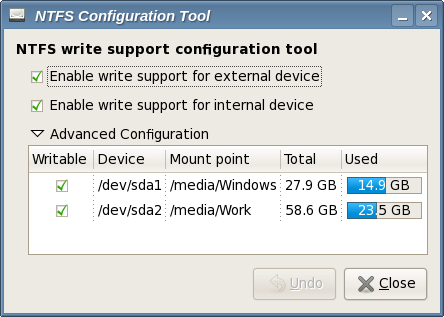
After you configure the tool and quit, your NTFS partitions will be mounted in the specified place. In my case /media/Windows and /media/Work.
Configure text console in high resolution and smaller fonts
This tip is for the text console.
bash$ sudo echo 'SYSFONT="lat0-08"' >> /etc/sysconfig/i18n  # set a ISO-8859-15 font
bash$ sudo echo 'fbset 1024x768-60' >> /etc/rc.d/rc.local    # set console resolution to 1024x768 @ 60Hz
These settings will take effect after a reboot, but you can test them before rebooting executing the following commands:
bash$ sudo setfont lat0-08
bash$ sudo fbset 1024x768-60
Note that you can set different resolutions than 1024×768 if you have a video card and monitor that will accept it. A full list of modes can be listed with the command:
bash$ grep "mode " /etc/fb.modes
I’ve been searching everywhere for a way to make my linux fonts look as good as windows, Thanks so much for the link to the BCI freetype RPM.
Ugly fonts was the one thing that keeps turning me off Linux.
For NTFS, ntfs-3g is installed by default. All you need to install is ntfs-config (it is unsigned atm, so you will have gpgcheck=0 until it is updated…) and run it. It can set up both read and write support for internal and external ntfs disks depending on what settings you use.
The kmod-ntfs method does read only as far as I know.
The kmod-ntfs doesn’t do read-write safely. ntfs-3g is a far better option. 🙂
Hi, yesterday one fedora installation here went wrong and the cause was using livna and freshrpms repositories at the same time. Steps to reproduce are: install f7, add both those repos and install mplayer using yumex. After that mplayer can’t start and is missing a tons of dependencies and is very very hard to fix. Using just freshrpms is enough for multimedia, at least here. Thanks for the font tip.
Mixing Freshrpms and Livna can lead to a world of pain.
Definitely NOT recommended.
Fred, this is why I’m showing which package to get from each repo.
The commands above are certified to work. At least for now.
Avi,
You are assuming too much technical skill and linux know-how from your target audience… the linux user that actually needs your help. These users will probably keep both repos enabled and screw up their system.
Please apply the freetype-2.3.4-ttf-overflow.patch security fix from the official freetype-2.3.4-3.fc7!
Fedora 7 already includes a set of fonts that are metrically equivalent to the MS Web fonts, but big-F Free. Just “yum install liberation-fonts” if they’re not already installed.
You can get more info about ’em here: http://www.press.redhat.com/2007/05/09/liberation-fonts/
Thanks for the very helpful howto on Fonts.
I recently installed Fedora 7 and on resolution of 1440 * 900 the fonts were looking very ugly till I visited this page 🙂
Hi ,
When:
yum -y –disablerepo=livna install mplayer mplayer-skins mplayer-fonts mplayerplug-in
I get the following:
Loading “installonlyn” plugin
Setting up Install Process
Parsing package install arguments
fedora 100% |=========================| 2.1 kB 00:00
updates 100% |=========================| 1.9 kB 00:00
Resolving Dependencies
–> Running transaction check
—> Package mplayerplug-in.i386 0:3.40-1.fc7 set to be updated
—> Package mplayer-skins.noarch 0:1.8-1 set to be updated
—> Package mplayer-fonts.noarch 0:1.1-3.fc set to be updated
—> Package mplayer.i386 0:1.0-0.34.rc1try2.fc7 set to be updated
–> Processing Dependency: libx264.so.55 for package: mplayer
–> Restarting Dependency Resolution with new changes.
–> Running transaction check
—> Package x264.i386 0:0.0.0-0.3.20070529.fc7 set to be updated
filelists.sqlite.bz2 100% |=========================| 60 kB 00:00
–> Processing Dependency: libx264.so.54 for package: ffmpeg-libs
–> Processing Dependency: libx264.so.54 for package: vlc
–> Finished Dependency Resolution
Error: Missing Dependency: libx264.so.54 is needed by package ffmpeg-libs
Error: Missing Dependency: libx264.so.54 is needed by package vlc
Any idea how I can fix this?
Thanks.
FS.
FSSGI, packages were upgraded and some dependencies were broken.
Let me investigate and I’ll update this page in the next days.
I install vlc and Mplayer only disabling livna repos with kyum.
I think yuo had to enable freshrpm repo!!!!
Do not use livna & freshrpm togheter!!!
Thank you very much for your help. The advices I found in your website helped me a lot.
I am an orthopedic surgeon in Jerusalem – Hadassah University Hospital – but I am working a lot with computerized stuff, trying to acquire more skills in linux.
Happy new year
Good howto, with a little skill, it can be adapted to any system… almost.
Right now I need some help on installing freetype-freeworld on CentOS5.1 if possible.
I would appreciate some guidance on that 🙂
Once I managed to find a newer EL5 freetype package and to rebuild it with BCI support, but now I’m stucked.
Font a rather recent guide that has a Centos5 section.
Might help others…
http://forums.fedoraforum.org/showpost.php?p=925868&postcount=1
Usefull link regarding a better use of yum
Thank you so much ^^
thanx a ton……:)
Wow man that was some real help.. awesome.. thanks a ton..
Avi, some of us who use Fedora in the corporate world will have to connect every now and then to hosts running MS Windows. For that, there are two useful RDP clients that are also not installed by default: rdesktop and freerdp. The former is poorly maintained, but it’s integrated with tsclient (a nice, multi-protocol GUI wrapper for remote session clients), while the latter is more up-to-date with later versions of the RDP protocol. Both apps are available from the stock Fedora repositories.
Allan, I use remmina as an integrated solution for RDP and VNC. Its very well integrated to Gnome also.
Just install gnome-applet-remmina to get the remmina package installed too.
Remmina! Grat tip: as convenient an interface as rdesktop, and a lot more functionality, plus keeping updated with the specs! Thanks a lot, Avi!
A not so extended but similar guide by Mauriat Miranda: http://www.mjmwired.net/resources/mjm-fedora-f14.html